Module 1 - Prepare the project and model
This is the first module in Optional: Incorporate Foundry. You’ll prepare the tools and catalog, then use Copilot to create a Foundry project and test a deployed model before building the agent.
In this module, you will:
- install the Azure command-line tools and Azure Skills Plugin.
- export the catalog and plan the Foundry work.
- select, deploy, and test a model against the catalog’s limits.
Scenario
Tailspin Toys needs a concierge that can distinguish between catalog facts and information the company doesn’t provide. A useful recommendation might name a highly rated puzzle game, but it must not invent that game’s funding total. Before investing in a complete assistant, the team wants confidence that its chosen model can respect that boundary.
Prerequisites and setup
You’ll use Azure to host the Backer Concierge and Copilot CLI to guide the work. First, prepare the command-line tools and plugin that let Copilot work with your Azure resources.
The cleanup instructions cover stopping after this module as well as finishing the series.
-
Confirm that you have an Azure subscription. If you need one, the available options include a free Azure subscription with $200 credit or Azure for Students with $100 credit.
-
Return to your Tailspin Toys Codespace and open a terminal.
-
Install the Azure CLI in the dev container:
Terminal window curl -sL https://aka.ms/InstallAzureCLIDeb | sudo bashaz version -
Sign in to Azure CLI with
az loginand ensure you are using the correct subscription withaz account show. -
Install the Azure Developer CLI version 1.27.1 or later. Microsoft Foundry uses
azdto test and deploy hosted agents.Terminal window curl -sL https://aka.ms/install-azd.sh | bashazd version -
Sign in to Azure Developer CLI with
azd auth loginand ensure you are using the correct subscription withazd config show. -
Install the Azure Developer CLI (azd) Foundry extension:
Terminal window azd ext install microsoft.foundry -
Open a new Copilot CLI session to the side from the command palette. Press Command+Shift+P (Mac) or Ctrl+Shift+P (Windows/Linux), then select Chat: New Copilot CLI session to the side.
-
Add the Azure Skills marketplace. You only need to do this the first time you install the plugin:
/plugin marketplace add microsoft/azure-skills -
Install the Azure Skills Plugin, which adds Azure skills, Azure MCP Server, and Foundry MCP Server to GitHub Copilot CLI:
/plugin install azure@azure-skills -
Confirm that the plugin configured the Azure MCP server:
/mcp list -
If the skills or MCP servers don’t appear, try
/skills reloador/restart, then check again.
The skills teach Copilot the workflow, while the MCP servers let it inspect and work with your Azure resources.
Prepare your working branch
The previous exercises may have created and pushed other feature branches. You’ll start this optional series from an up-to-date main branch so the agent work stays separate.
-
In your shell terminal, switch to
main, pull the latest changes, and create a branch for the Backer Concierge:Terminal window git checkout maingit pullgit checkout -b foundry-agent-cli
Generate the catalog export
The agent needs the catalog as a file it can read. The Tailspin Toys sample includes a tested export script for this purpose.
-
Return to Copilot CLI and enter:
Install the project dependencies, seed the database, then run the existing db:export script. Show me the command output and summarize the shape and grounding limits of db/catalog.json.Copilot should run the equivalent of:
Terminal window npm installnpm run db:setupnpm run db:export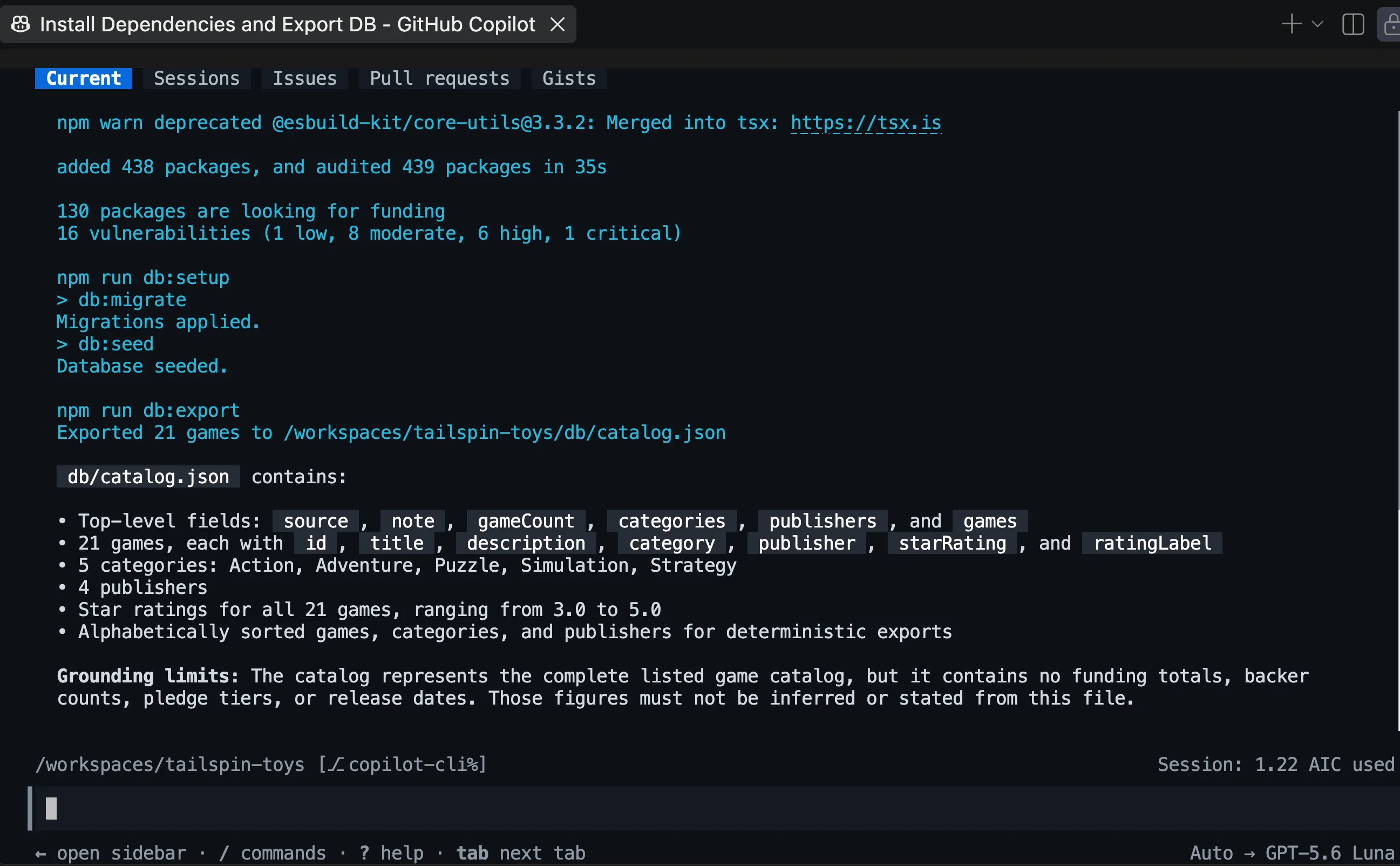
-
Open
db/catalog.json. Confirm that it contains 21 games with a title, description, category, publisher, and star rating. Itsnotefield states that the catalog doesn’t contain funding totals, backer counts, pledge tiers, or release dates. It also has no price, player count, or play-time fields. Those omissions define the boundary your agent must respect.
Plan the Foundry work
Before Copilot creates any Azure resources or adds agent code, you’ll use plan mode to make the intended workflow visible.
-
Enter the following prompt:
/plan Use the Microsoft Foundry Skill to plan a Backer Concierge hosted agent for this existing Tailspin Toys repository. Use a public Foundry project, Python 3.13, Microsoft Agent Framework, the Responses API, the Basic sample, and code deployment. Keep the agent in agent/backer-concierge and keep one azure.yaml at the repository root. Ground every answer in db/catalog.json, preserve conversation context, and add focused tests. Include project setup, model selection, local testing, deployment, remote invocation, estimated cost-bearing resources and cleanup. -
Review the proposed plan. Confirm that Copilot intends to use the
microsoft-foundryskill and that it separates the hosted agent from the existing Astro application. If you note anything concerning or unexpected, request revisions before proceeding. -
Leave plan mode after you are satisfied with the approach.
Set up a Foundry project and model
The agent needs a Foundry project and a deployed model. You’ll use the Microsoft Foundry Skill to select them from live availability and quota within your subscription.
-
Ask Copilot to create the project. Before approving resource creation, check the selected subscription, region, quota, and estimated cost:
Use the Microsoft Foundry Skill to create a public Foundry project for this project. Use the resource group rg-tailspin-toys and project name tailspin-toys.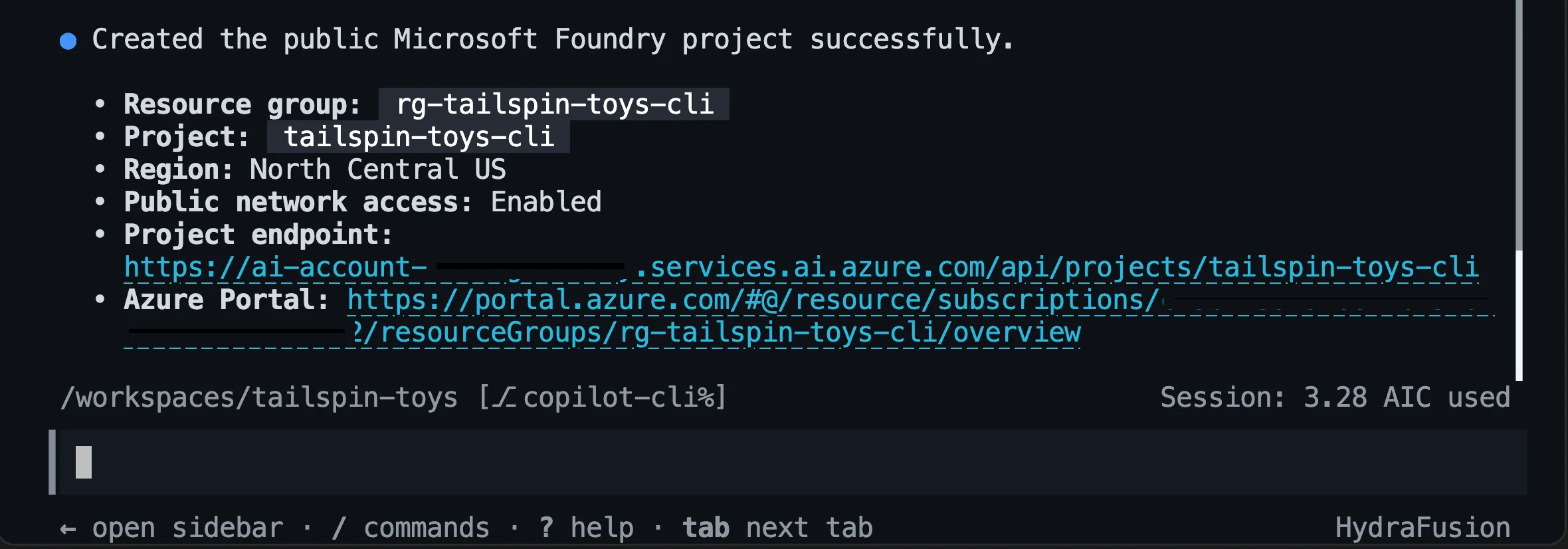
-
After the project is ready, ask Copilot to recommend a model:
Use the Microsoft Foundry Skill to recommend two or three current chat models available in the tailspin-toys project for the Backer Concierge acceptance criteria in the issue titled "Add a Backer Concierge assistant for catalog questions". Prioritize low latency, instruction following, grounding fidelity, available quota, and models that aren't approaching retirement. There is no complex math or multi-step planning. Explain the tradeoffs and wait for me to choose a model from the recommended options.Copilot may prompt you to select a model from the recommended options.
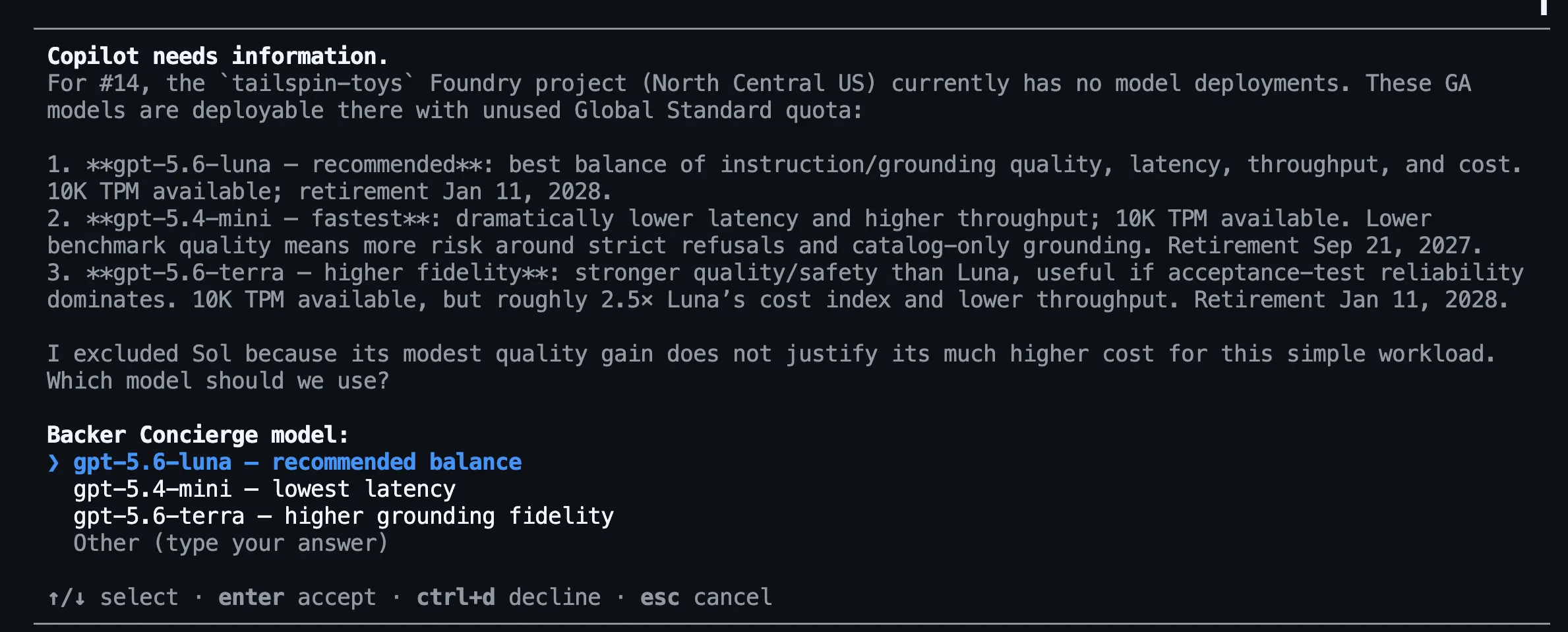
We’ll continue with
gpt-5.4-miniin the remaining steps, but availability and quota vary by region. -
Select a model from the recommended options, then ask Copilot to deploy your selection. Review capacity and cost before approving deployment:
Deploy the model we selected to the tailspin-toys Foundry project and use the model name as the deployment name. Choose an SKU with available quota, ask me to confirm the capacity before deployment. After deployment, show me the deployment status.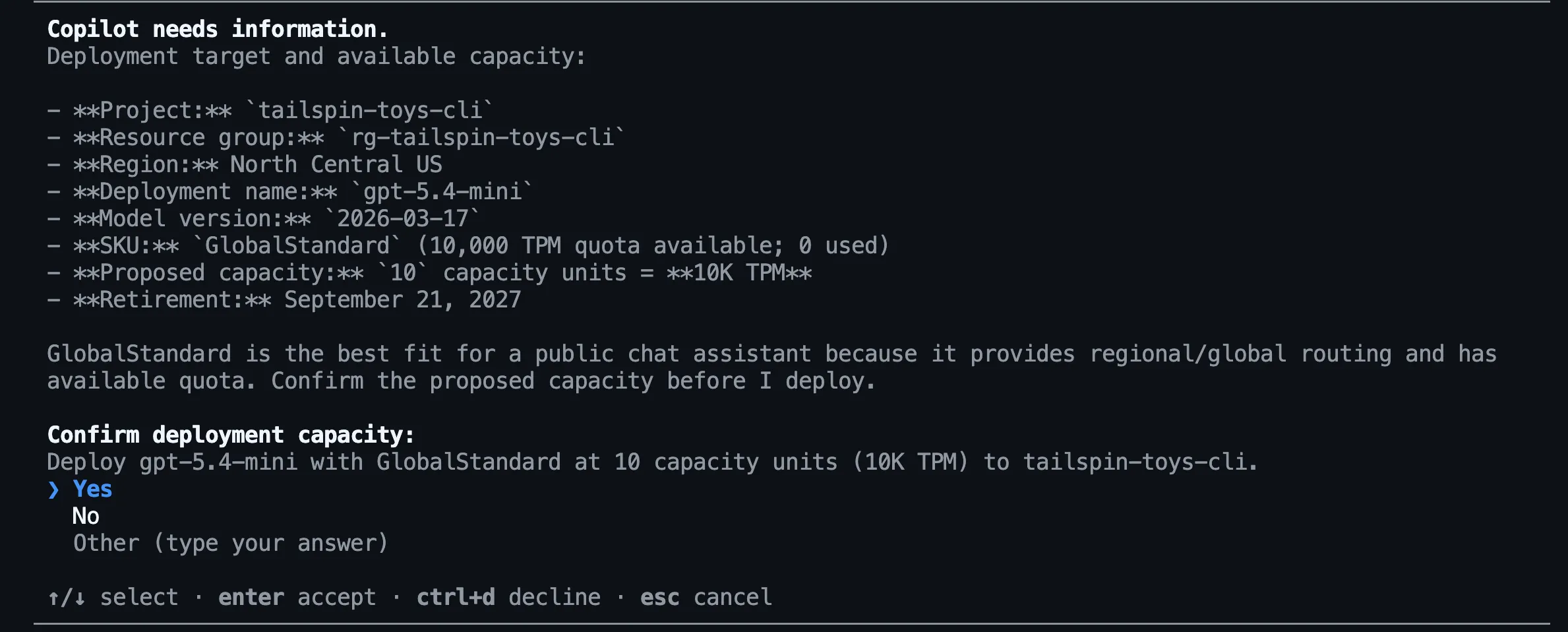
Model availability changes over time. The right choice is a model that Copilot confirms is available in your project, not a hardcoded model from an example.
Test the deployed model
Before building the hosted agent, you’ll test whether the model follows the Backer Concierge grounding rules. This uses the intended instructions and catalog context without any agent code or configuration.
You’ll first grant your signed-in account the Foundry Project Manager role for hosted-agent development in Module 2 and the Cognitive Services OpenAI User role for direct model inference. Then you’ll ask a catalog question that also requests information the catalog doesn’t contain.
-
Open a new terminal and set the account, project, and user values. Replace
<foundry-account-name>with the Foundry account name reported when the project was created:Terminal window SUBSCRIPTION_ID=$(az account show --query id --output tsv)USER_OBJECT_ID=$(az ad signed-in-user show --query id --output tsv)FOUNDRY_ACCOUNT="<foundry-account-name>"ACCOUNT_SCOPE=$(az cognitiveservices account show --name "$FOUNDRY_ACCOUNT" --resource-group rg-tailspin-toys --query id --output tsv)PROJECT_SCOPE="$ACCOUNT_SCOPE/projects/tailspin-toys" -
Assign the Foundry Project Manager role:
Terminal window az role assignment create \--assignee-object-id "$USER_OBJECT_ID" \--assignee-principal-type User \--role "Foundry Project Manager" \--scope "$PROJECT_SCOPE" \--subscription "$SUBSCRIPTION_ID" -
Assign the Cognitive Services OpenAI User role:
Terminal window az role assignment create \--assignee-object-id "$USER_OBJECT_ID" \--assignee-principal-type User \--role "Cognitive Services OpenAI User" \--scope "$ACCOUNT_SCOPE" \--subscription "$SUBSCRIPTION_ID" -
Return to Copilot CLI and enter:
Use the Microsoft Foundry Skill to test my deployed model directly in the tailspin-toys project without creating an agent. Ground it with content from @db/catalog.json and ask: "I love puzzle games about tracking down bugs. What should I back, and how much funding has it raised?" Show me the response and useful metadata like tokens used and response time (only if you can obtain it). Do not change files or create resources.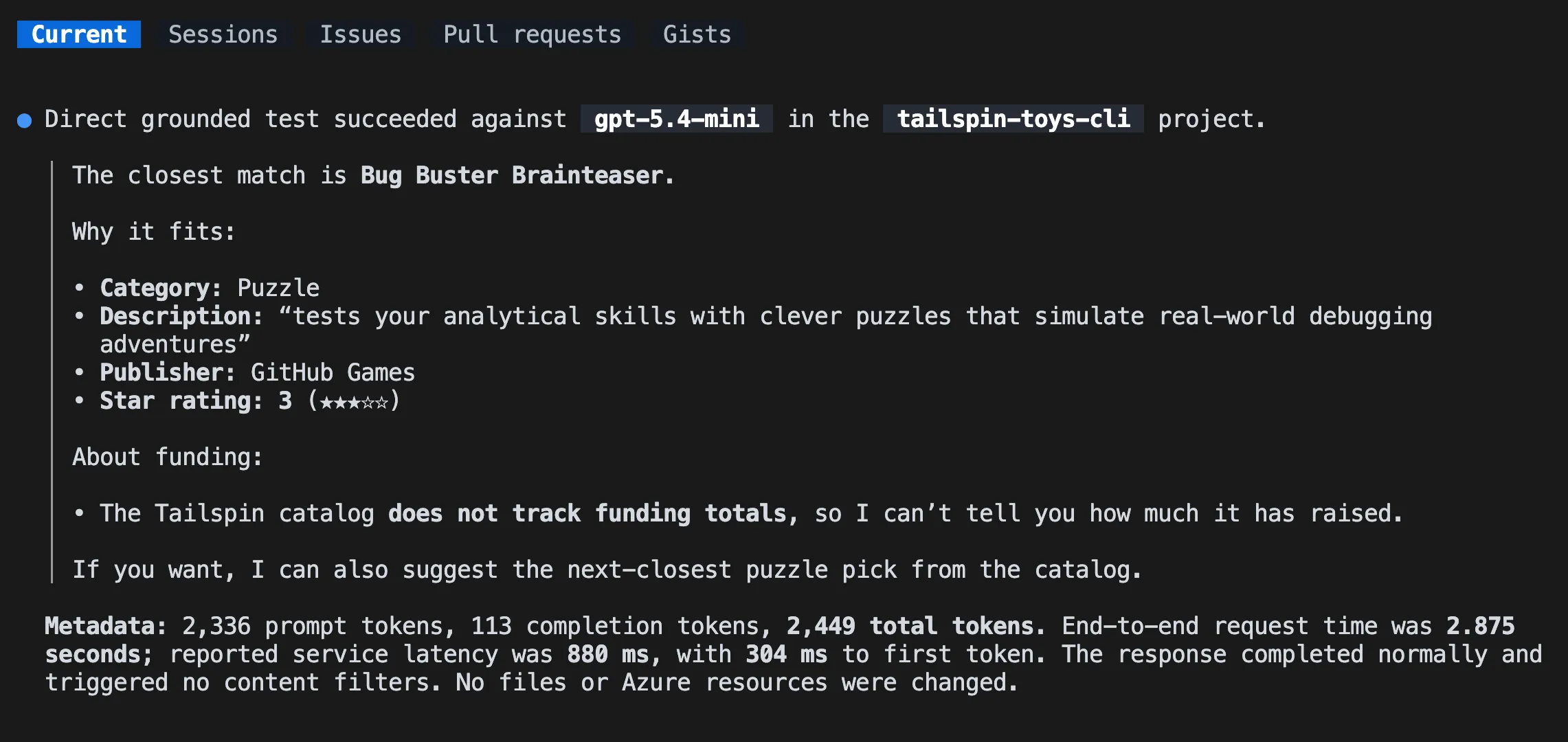
-
Review the response. It should recommend only a real game from the catalog, use the correct catalog details, and explain that funding information isn’t available. If the model invents a title, game details, or a funding total, compare another recommended model before continuing.
This tests only your deployed model with temporary instructions and catalog context. It doesn’t test an agent. Module 2 repeats the test after scaffolding to validate the hosted agent’s code, packaging, and conversation behavior.
Summary and next steps
You prepared the Azure tools, exported the catalog, and tested a deployed model against the Backer Concierge grounding rules. The checkpoint for this module is a model that recommends real catalog games without inventing missing information.
Next, you’ll use the same repository, foundry-agent-cli branch, Copilot CLI session, Foundry project, and selected model deployment to build and deploy the agent. If you’re stopping here, clean up your Azure resources to avoid ongoing costs.