Module 3 - Connect the agent to the website
In Module 2, you deployed and tested the Backer Concierge. This final module in the optional concierge series makes that agent available through your local Tailspin Toys website.
In this module, you will:
- build a local Azure Functions proxy that keeps Foundry credentials on the server.
- add an accessible chat widget to the site.
- verify the complete conversation flow and clean up your resources.
Scenario
Backers discover games on the Tailspin Toys website, not in a developer’s terminal or an Azure portal. The team wants the concierge available alongside the catalog, with a chat experience that supports follow-up questions and protects the service’s credentials.
Continue with your hosted agent
The website integration needs the deployed agent from Module 2. You’ll keep that agent running in Foundry while the proxy and website run locally.
- Return to your Codespace, then open the Tailspin Toys repository on the
foundry-agent-clibranch and your existing Copilot CLI session. - Confirm that the Backer Concierge is deployed and that the remote invocation from Build and deploy the agent passed. If you already removed the Azure resources, recreate them through the earlier modules before continuing.
The proxy and website in this module run locally; this is not a production website deployment. Your model and hosted agent remain billable Azure resources until you complete cleanup.
Build the server-side proxy
Tailspin Toys is fully pre-rendered. Browser code must never call the hosted agent directly or receive Foundry credentials. You’ll add a local Azure Functions server-side credential boundary that authenticates to Foundry and returns only the agent response to the browser.
The microsoft-foundry skill owns the hosted-agent workflow, while the broader Azure skills in the same plugin can prepare the local Function project. You’ll use those skills to build the proxy, then check that it reaches the agent without exposing credentials.
-
In Copilot CLI, enter:
Use the Azure skills to add an Azure Functions v4 Node.js and TypeScript project in api with one POST /api/concierge endpoint that invokes my deployed Backer Concierge hosted agent. This Function will run locally only; don't add it to azure.yaml or create Azure deployment infrastructure. Use DefaultAzureCredential with my local Azure sign-in. Keep the HTTP trigger thin, isolate the Foundry client in a unit-testable module, validate and limit request bodies, set explicit timeouts, and return sanitized errors. Store the Foundry project endpoint and agent name in local server-side settings that are excluded from version control. Never return credentials or access tokens to the browser. The Astro site is `output: 'static'` with no dev proxy, so also add a local-only Vite dev-server proxy for /api to the Function's port in astro.config.mjs, so relative /api/concierge requests reach it during `astro dev`.For conversation state, generate a high-entropy handle on the server, map it to the Foundry conversation server-side with an expiration, and never expose a raw Foundry conversation or thread identifier. Reject malformed, expired, and unknown handles. Add focused unit tests.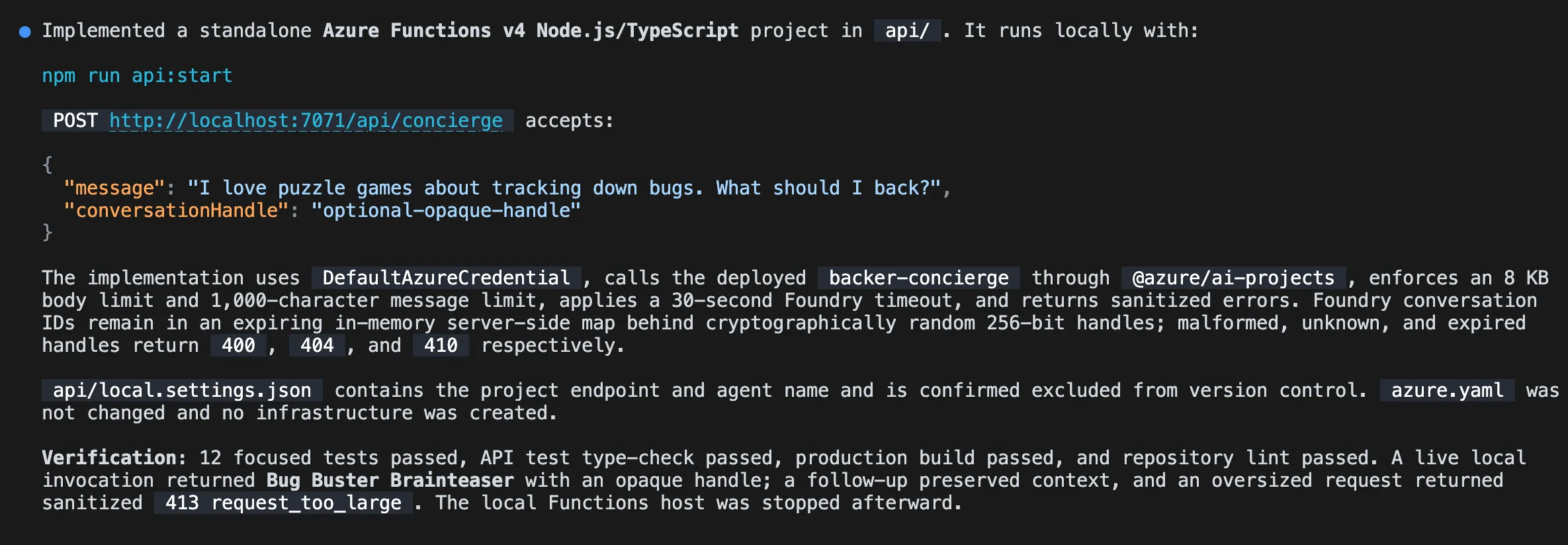
-
Open another terminal, then start the local Function using the command provided by Copilot. Leave the Function running.
-
Return to Copilot CLI and ask Copilot to test the local proxy:
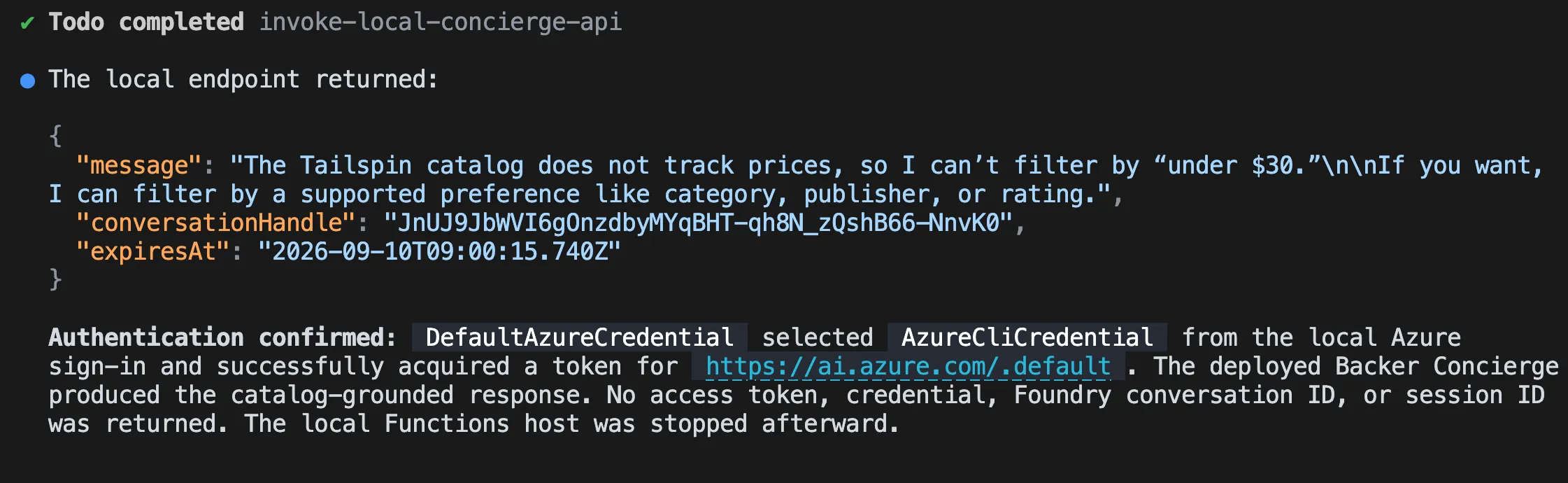
Send a request to the local /api/concierge endpoint asking "Which games are under $30?" and show me the sanitized JSON response. Confirm that the request reaches the deployed Backer Concierge through DefaultAzureCredential. -
Inspect the response. It should explain that the catalog doesn’t contain prices. It must not contain a Foundry token, credential, project endpoint, raw Foundry conversation identifier, or stack trace.
Build the chat widget
The proxy gives the browser a safe way to reach the concierge. You’ll now add a chat widget to the site and use Playwright to check the complete conversation flow.
-
Ask Copilot to create the site integration:
Add an accessible Backer Concierge chat widget as an Astro component and render it site-wide from Layout.astro. It should POST to /api/concierge and thread the conversation using the returned opaque conversation handle, follow the dark theme in style.instructions.md, support Escape to close, and include data-testid attributes. -
Keep the local Function running and start the Astro site in another terminal using the command provided by Copilot.
-
Return to Copilot CLI. The Playwright MCP server you inspected or added in Lesson 6 is already available. Ask Copilot to test the widget:
Use the Playwright MCP server to test the Backer Concierge widget end to end in the running Tailspin Toys site. Verify its core chat flow, conversation continuity, accessibility, error handling, grounding boundaries, and secure use of the local proxy. Report the results and include evidence for any failures.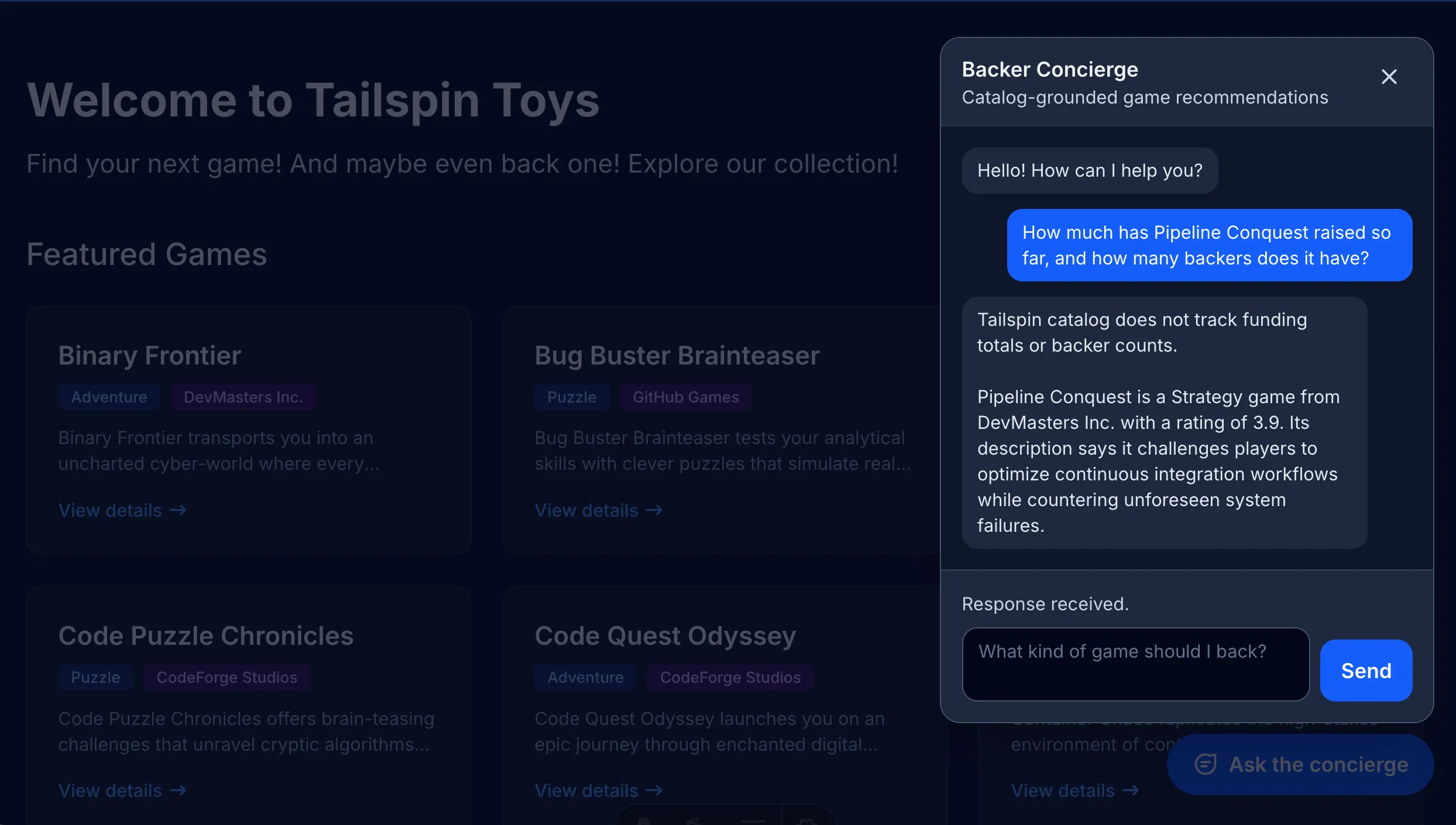
-
Review the results against the reported evidence. If any checks fail, ask Copilot to fix the relevant proxy or widget behavior and rerun the failed checks before finishing.
Clean up your resources
You’ve reached the final checkpoint: a working concierge in your local website. The shared cleanup instructions cover both the local services and Azure resources created across the series.
- Complete Clean up your resources, including stopping the local services and verifying that Azure resource deletion finishes.
Summary and next steps
You connected the hosted Backer Concierge to Tailspin Toys through a local server-side proxy and an accessible chat widget. Across the series, you used GitHub Copilot CLI and Foundry to prepare a model, build and deploy an agent, and verify a complete website integration.
Continue to Wrap-up and next steps to close out the CLI workshop.