Lesson 7 - Planning with canvases
So far you’ve directed agents through chat. But a lot of work doesn’t live in a conversation — it lives on a board, in a document, or on a checklist. Canvases give you and the agent a shared surface for exactly that kind of work, right inside the app. In this lesson you’ll create a simple canvas to plan and track the backlog you’ve been working through.
In this lesson, you will:
- understand what a canvas is and when to use one.
- create a shared Kanban board canvas to triage your backlog.
- save the canvas to your repository and merge it for the team.
- open the canvas in a new session and start work from it.
Scenario
Looking at a list of issues can be rather daunting, even in the best of times. Tailspin Toys’ developers have been looking for a tool that would allow them to quickly triage issues, and begin work on them in Copilot app.
What is a canvas?
A canvas is a shared, interactive surface for a work artifact — a plan, a triage board, a release checklist, a dashboard, or a document. While chat is great for describing intent and reasoning through ambiguity, most work happens on a surface. Canvases let you collaborate with the agent directly on that surface.
Canvases are bidirectional: the agent can update the canvas while it works, and you can edit the same surface yourself. When you create a canvas, the agent builds it based on your prompt and workflow, and you can ask it to add, remove, or revise capabilities as you go. Once created, a canvas opens in the app’s right side panel.
Some common examples include:
- Markdown canvases for planning your day and prioritizing issues and pull requests.
- Agentic kanban boards where people and agents add cards and move work across columns.
- Issue triage boards that summarize top issues and recurring themes for a repository.
Why use a canvas?
Reach for a canvas when a task needs structure, iteration, and verification, and a chat alone isn’t enough. A canvas lets you:
- ground the agent’s work in an actual artifact that fits your workflow.
- steer or correct work directly on the shared surface, then let the agent continue from your changes.
- inspect progress as visible changes to an artifact, not just chat responses.
Create a canvas to track your work
You’ve shipped a lot: the star rating, the documentation standard, and the filtering feature are all merged. But there’s still items on the backlog. Let’s create the canvas to help quickly triage the work.
-
Return to (or open) the GitHub Copilot app.
-
Select the Home screen.
-
Ensure
tailspin-toysis selected for the repo. -
In the prompt box, use the following prompt to create our canvas that meets our needs:
Create a basic Kanban board canvas that allows me to quickly triage work. Highlight the three issues which are most likely to need attention right now, with the remainder in a second section down below. The top three cards should include a description of the issue's content and a justification of why they're at the top of the list. Each issue should have a button that allows me to add it to the current context for the current session so I can get to work on it straightaway.
Copilot will get to work on creating the canvas!
This will take a few minutes for it to do so. Because this is a complicated task, you might not be satisfied with the first version. You can continue to prompt to build the tool of your dreams!
Save the canvas and merge it to the repository
Canvases can become assets in the repository, just like instructions files and skills. Let’s ask Copilot to add it to our repository and merge it so the whole team can use it.
-
In the same session, ask Copilot to save the canvas to the repository by using the following prompt:
Let's save this canvas definition to the repository so I can share it with my development team -
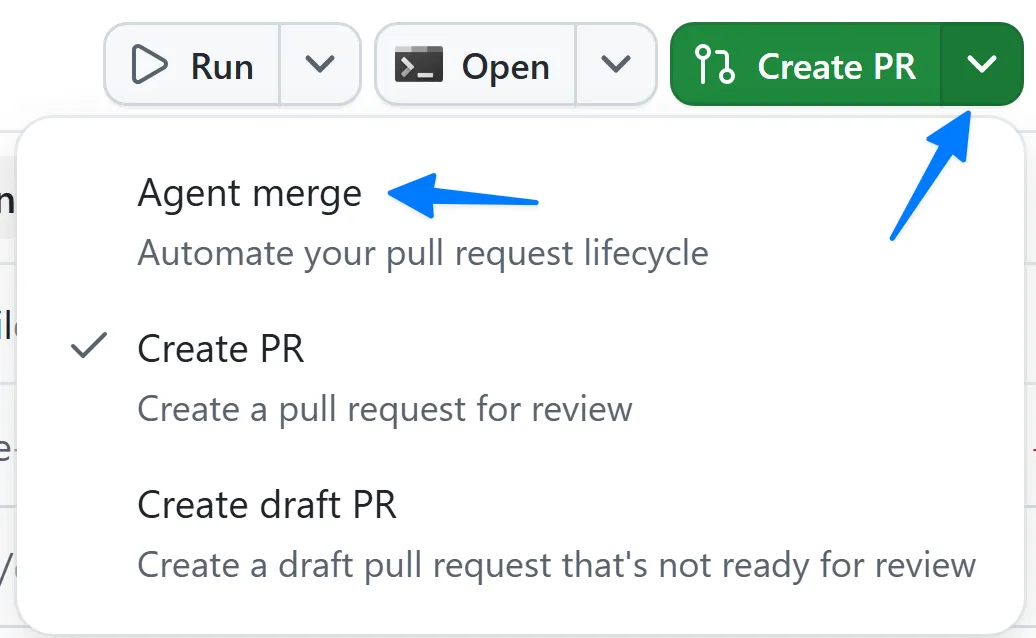
Once Copilot has saved the canvas files, select the dropdown next to Create PR in the upper right-hand corner.
-
Select Agent merge to enable agent merge.
-
The button text now changes to Agent merge.
-
Select the Agent merge button to start the agent merge process.
Copilot app begins the process of creating and managing the PR. It starts by exploring the project to determine how best to create a PR, then creates it.
After a few moments, you’ll notice Copilot starts work again, looking at the PR conditions — the CI process of running all the tests on your repository. It will report back status on any reviews left by other team members, any checks that need to run (the CI process), and if the PR is mergeable.
-
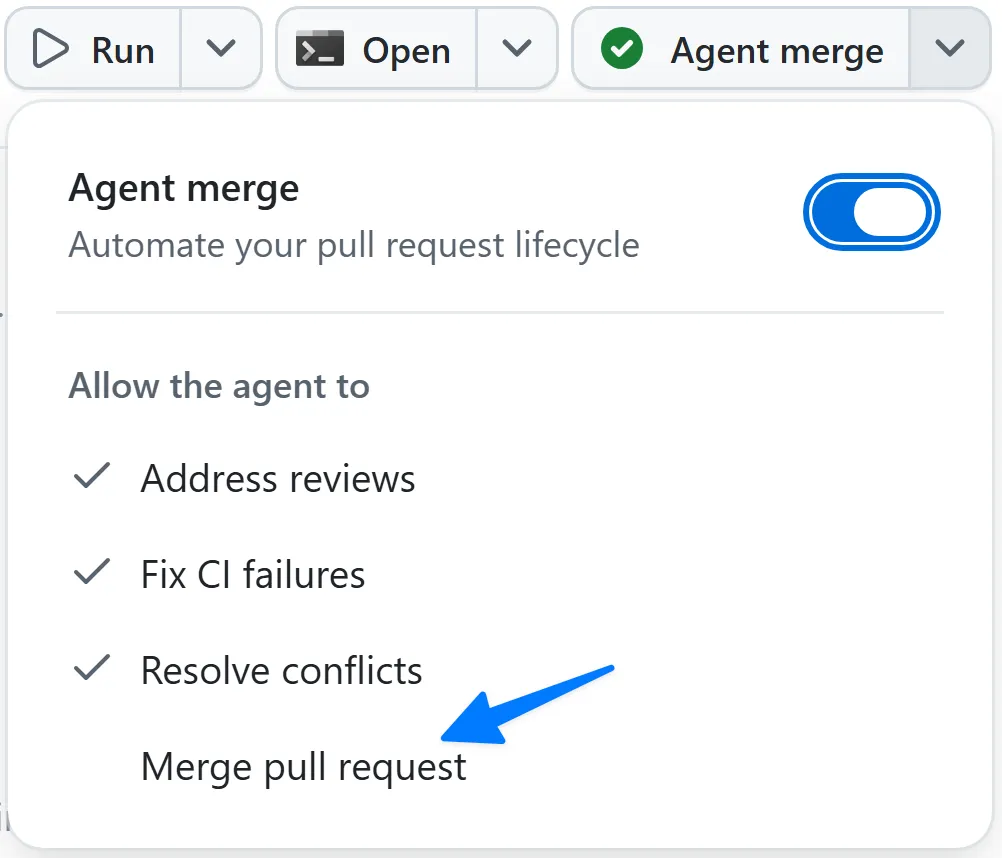
Allow agent merge to merge the pull request by selecting the dropdown next to Agent merge then Merge pull request.
-
Wait for all CI processes to pass (go green). Once they do, Copilot will merge the pull request automatically!
You’ve now created a new shared canvas for your team!
Work in the canvas
With the canvas created, let’s start a new session and put it to work!
-
Inside the Copilot app, start a new session by selecting New session next to tailspin-toys.
-
Ask Copilot to open the triage canvas by using the following prompt:
Open the triage issues canvas -
You should notice the canvas you built is now open in this new session!
-
Select Add to current context on one of the issues that’s of most interest to you.
-
Copilot gets to work on the issue!
You’ve now used a canvas you created to streamline the development process.
Summary and next steps
You created a shared surface where you and the agent can collaborate! You:
- learned what canvases are and when to use them.
- created a shared Kanban triage board canvas with the agent.
- saved and merged the canvas to your repository with Agent Merge.
- opened the canvas in a new session and used it to start work.
With your backlog tracked, take a step back to review everything you’ve built and where to go next. Continue to Lesson 8 - Review and next steps.